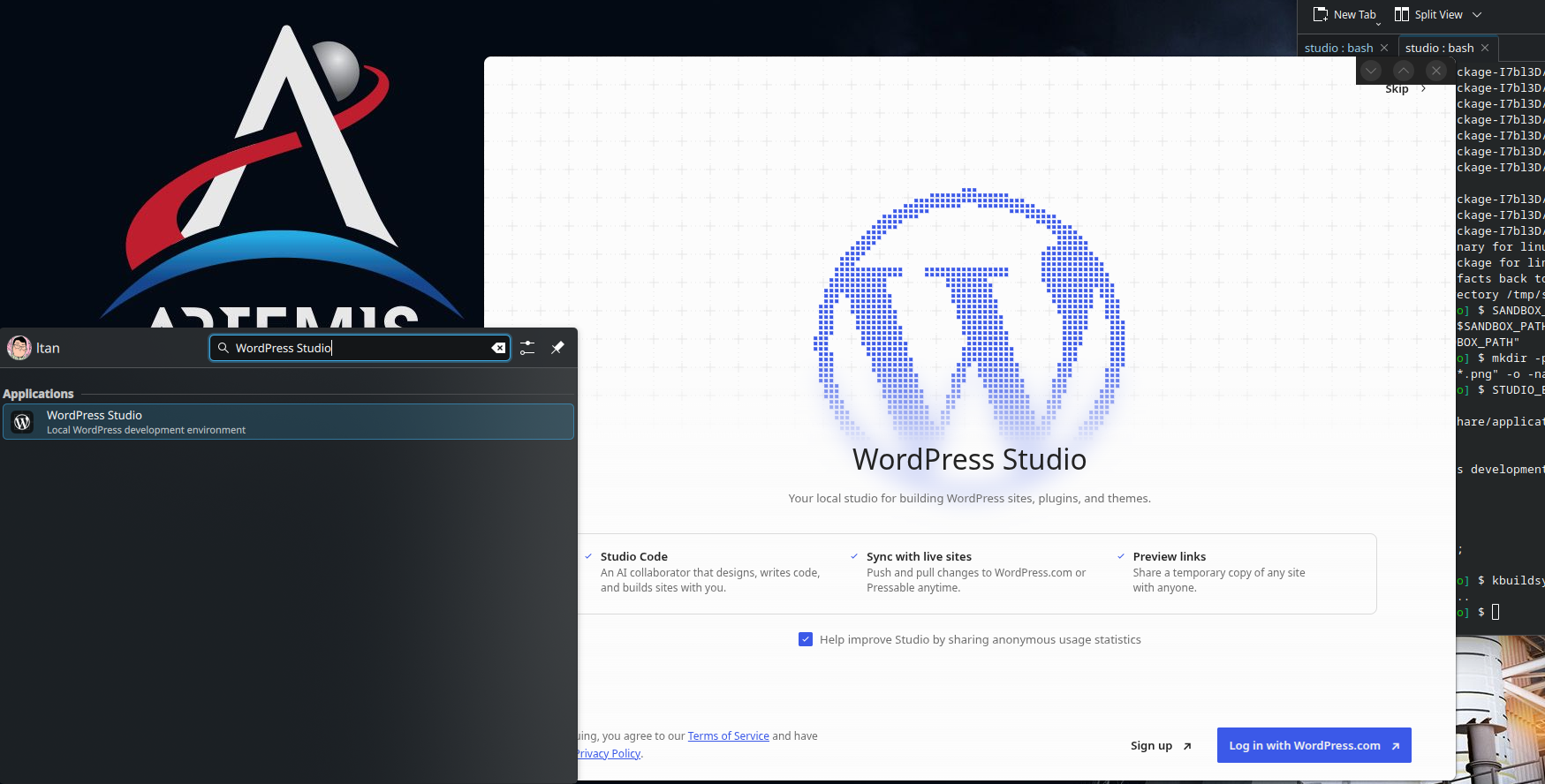
I’ve been hopping between local WordPress development environments for a while, and Automattic's WordPress Studio has become a favorite. Powered by WordPress Playground (PHP WASM) and Electron, it's incredibly lightweight. My only complaint is that they only package for Debian for their Linux releases. Since I've been on Fedora for the past 2 years, I am forced to build from source.
Recently, Automattic reorganized the repository into a modern monorepo workspace. On top of that, their Electron Forge setup only generates .deb packages by default, often cleaning up or burying the raw binaries if you try to use npm run make.
To get around this without writing custom build configs, we can use npm run package to generate the raw binaries, fix the Electron sandbox permissions, and dynamically generate a .desktop shortcut for KDE Plasma. Here is a clean setup using the terminal.
1. Update Your System
Open a terminal and make sure your system packages are fully updated:
sudo dnf upgrade --refresh -y
2. Install Build Dependencies
Since Studio is an Electron app with native Node modules, you need standard C++ build tools, Python, and a few libraries required by Electron on Linux.
sudo dnf install -y git python3 make gcc-c++ alsa-lib nss libXScrnSaver libX11-devel gtk3
3. Install Node Version Manager (NVM)
Studio requires a specific Node.js version defined in its .nvmrc file. The cleanest way to manage this without polluting your system packages is via NVM.
curl -o- https://raw.githubusercontent.com/nvm-sh/nvm/v0.39.7/install.sh | bash
source ~/.bashrc
4. Clone the Studio Repository
Grab the source code directly from Automattic's GitHub repository. Let's place it in ~/.local/opt to keep our home directory tidy.
mkdir -p ~/.local/opt
git clone https://github.com/Automattic/studio.git ~/.local/opt/studio
cd ~/.local/opt/studio
5. Install Node.js and Project Dependencies
Run the following inside the project directory to install the correct Node.js version and fetch the npm workspaces:
nvm install
nvm use
npm install
6. Package the Application
Instead of make (which tries to build a .deb installer), we will use package. This tells Electron Forge to just compile the raw binaries and leave them alone.
npm run package
Because of the monorepo structure, the output won't be in the root directory. It gets nested inside apps/studio/out/. Depending on the version, the exact folder name might vary, so we'll use dynamic commands for the next steps.
7. Fix the Chrome Sandbox
Running an unpacked Electron executable usually triggers the classic SUID sandbox error. To fix this, we need to adjust the permissions on the chrome-sandbox binary.
Run this to automatically find the sandbox binary and apply the correct permissions:
SANDBOX_PATH=$(find $PWD/apps/studio/out -type f -name "chrome-sandbox" | head -n 1)
sudo chown root:root "$SANDBOX_PATH"
sudo chmod 4755 "$SANDBOX_PATH"
8. Create a KDE Desktop Shortcut
To make WordPress Studio feel like a native app (searchable via KRunner or the Application Launcher), we need to create a .desktop file and extract the app icon.
First, locate the app icon and copy it to your local icons directory:
mkdir -p ~/.local/share/icons
find $PWD -name "*icon*.png" -o -name "*studio*.png" | head -n 1 | xargs -I {} cp {} ~/.local/share/icons/wp-studio.png
Next, dynamically generate the .desktop file so it points to the exact location of your newly compiled executable:
STUDIO_EXEC=$(find $PWD/apps/studio/out -type f -name "studio" -executable | head -n 1)

cat <<EOF > ~/.local/share/applications/wp-studio.desktop
[Desktop Entry]
Name=WordPress Studio
Comment=Local WordPress development environment
Exec="$STUDIO_EXEC"
Icon=wp-studio
Terminal=false
Type=Application
Categories=Development;
EOF
Finally, tell KDE Plasma to rebuild its system configuration cache so the shortcut appears immediately:
kbuildsycoca6
(Note: If you happen to be on an older version of Plasma, use kbuildsycoca5 instead).
You should now be able to launch WordPress Studio directly from your app menu!
Troubleshooting:
- If the build hangs on native modules, double-check that
python3andgcc-c++are installed correctly. - If the app fails to launch, check the terminal output for any missing shared libraries (like
libasoundorlibnss3). - If the icon doesn't show up in KDE immediately, logging out and logging back in usually does the trick.
 ltan.dev